
With the Sticky External Link Button, you can display a floating button at the top or bottom of the screen that remains visible as customers scroll.
In this article, we'll walk you through the steps to integrate the Sticky External Link Button into your 2.0 store using the Outlink Sticky Button Block.
How to Add the Sticky External Link Button App Block ?
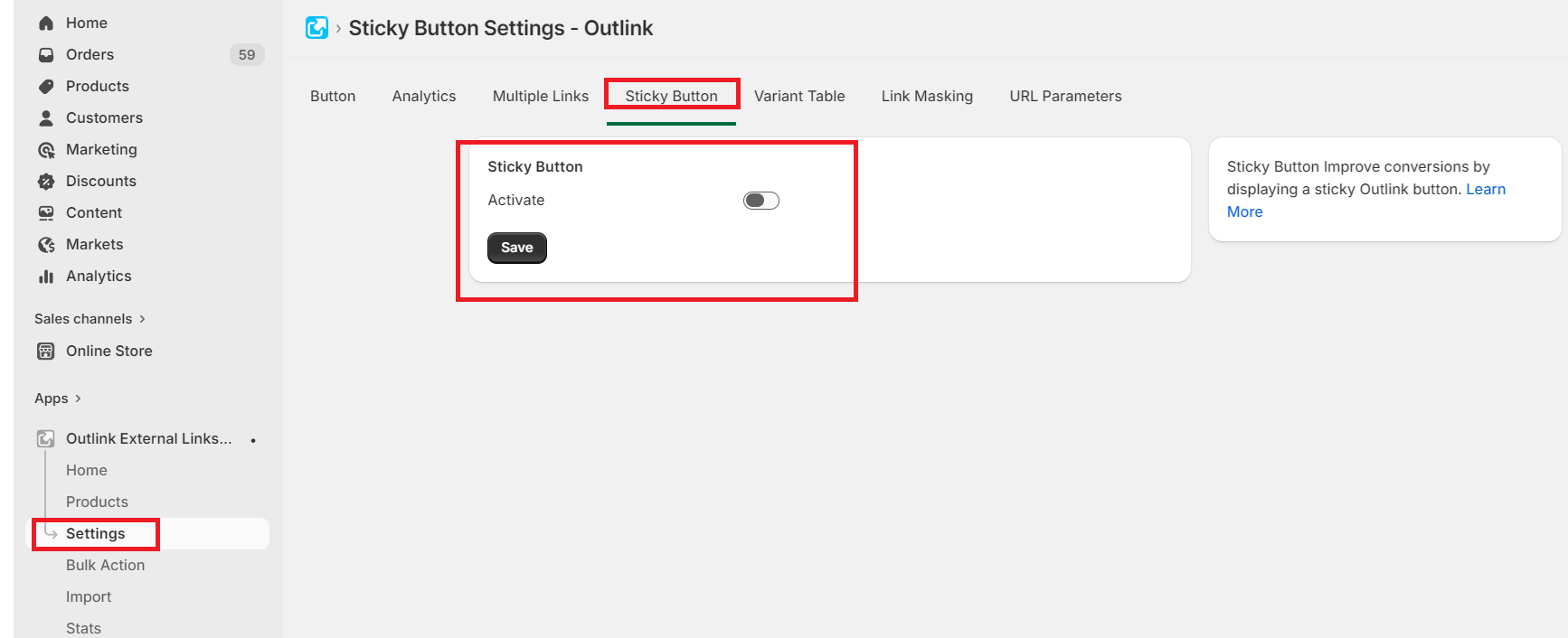
Step 1. Enable Sticky Button from App Settings
Open the Outlink App from your Shopify admin and navigate to the Sticky Button section under settings. Toggle Enable Sticky Button.
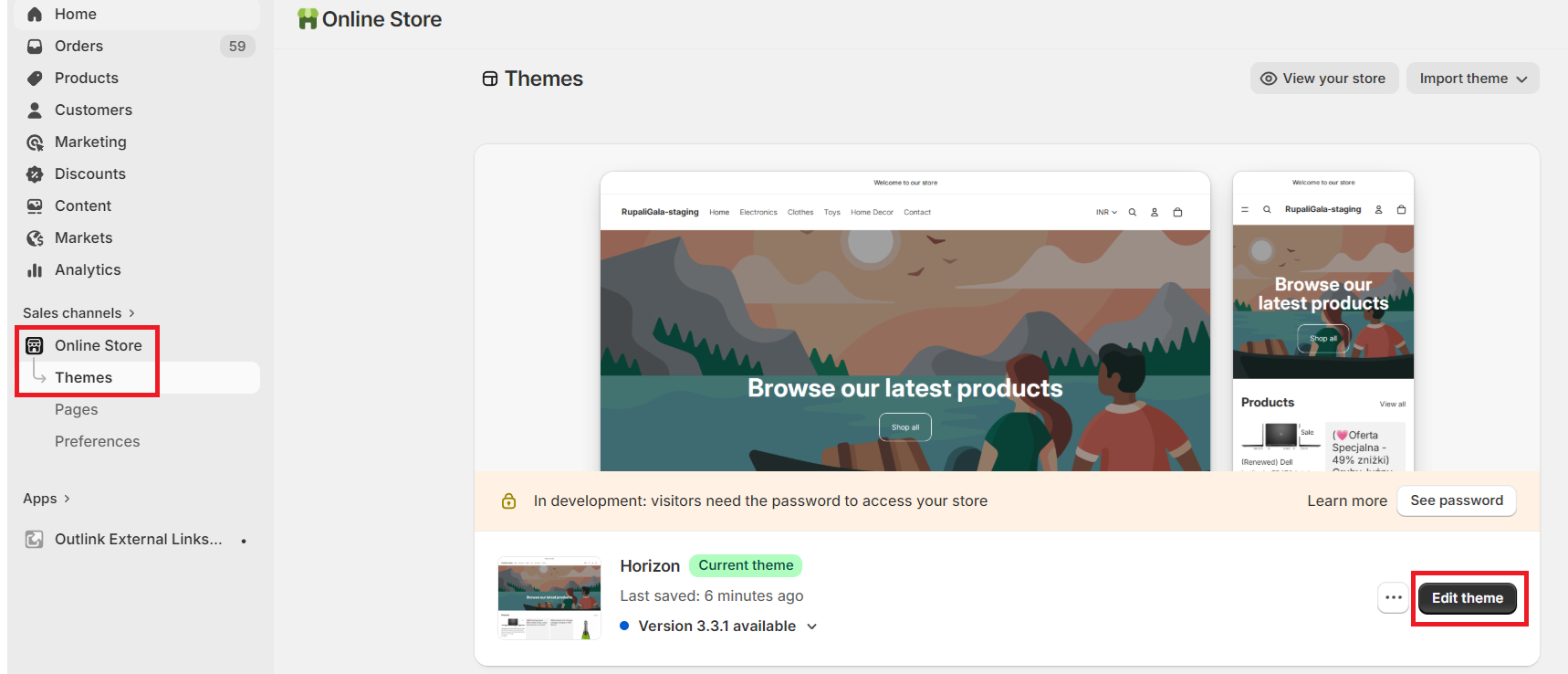
Step 2. Open your Shopify admin
Go to: Online Store → Themes → Edit Theme / Customize
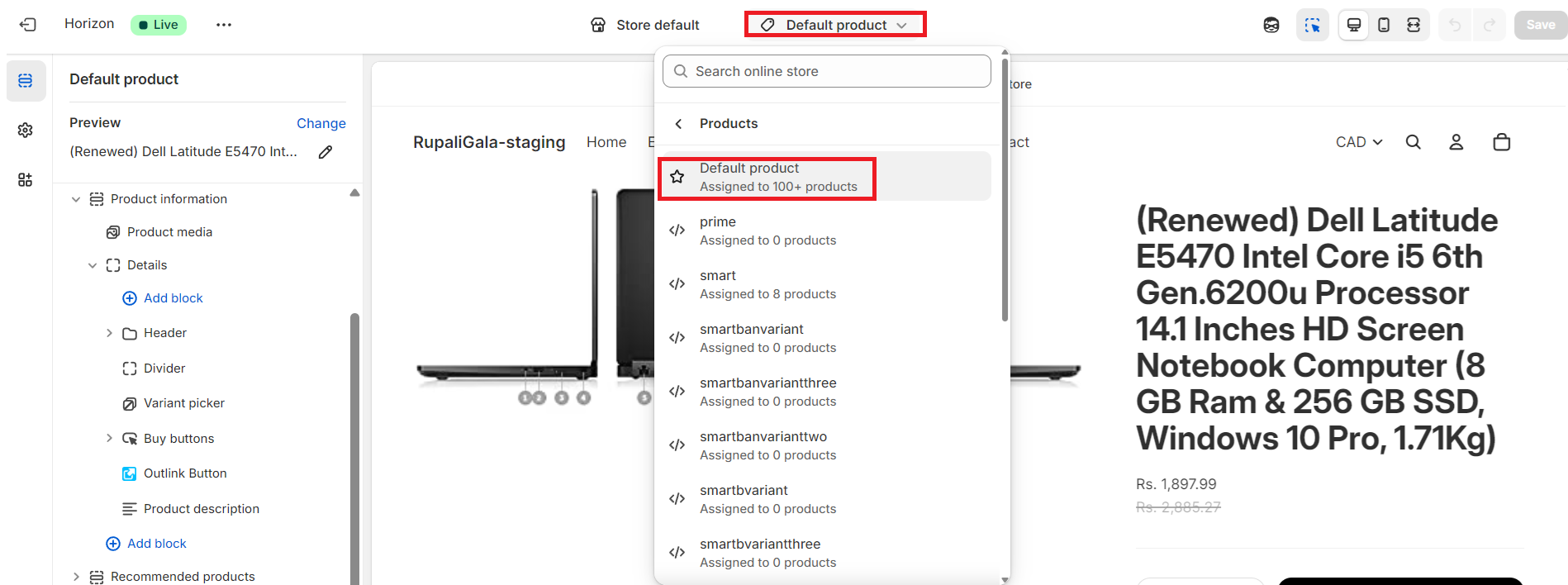
Step 3. Select a product template
From the top dropdown, choose the Product template where you want the sticky button to appear.
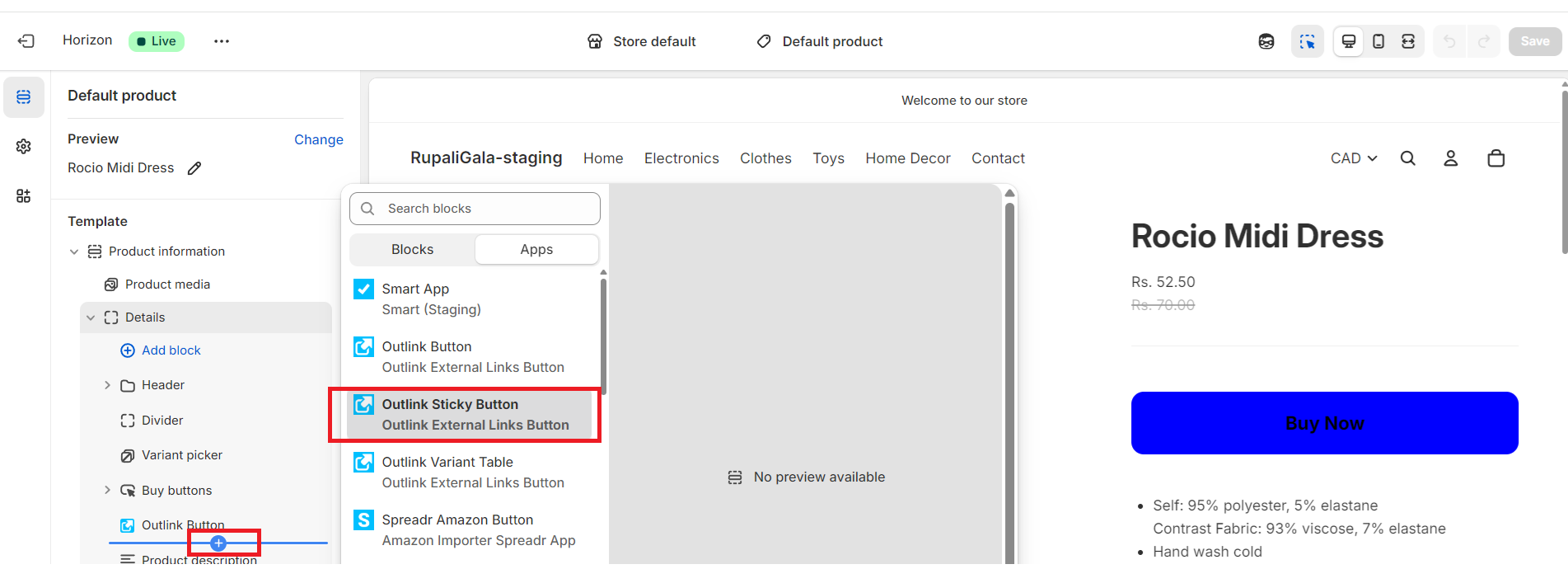
Step 3. Click "Add Block"
From the left sidebar, click Add Block, then select Outlink Sticky Button Block under Apps.
Step 4. Set Button Position and Customize Button Style (Optional)
Choose where the sticky button should appear on the screen:
- Top of the page
- Bottom of the page
You can personalize the appearance of the sticky button using CSS.
Available Options:
- Button Background Colour
- Button Text Colour
- Bar Background Colour
This allows you full flexibility to match the button with your store’s branding.
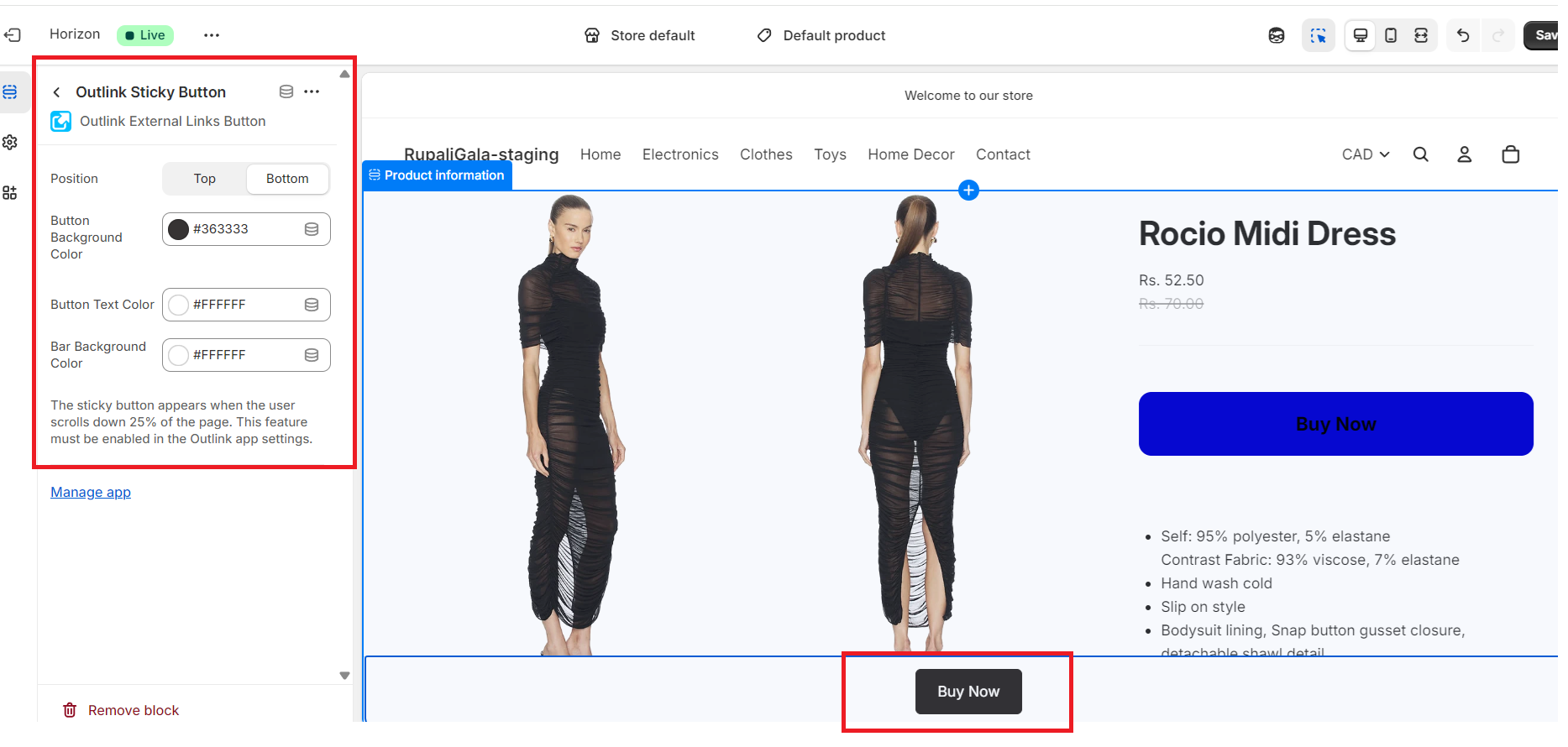
Step 4. Save Changes
Click Save to apply the sticky button to your Outlink products.
Button Behaviour on Product Pages
- The Sticky External Link Button will remain visible while scrolling.
- It will only appear on Products added via Oultink App.
Sample Preview :
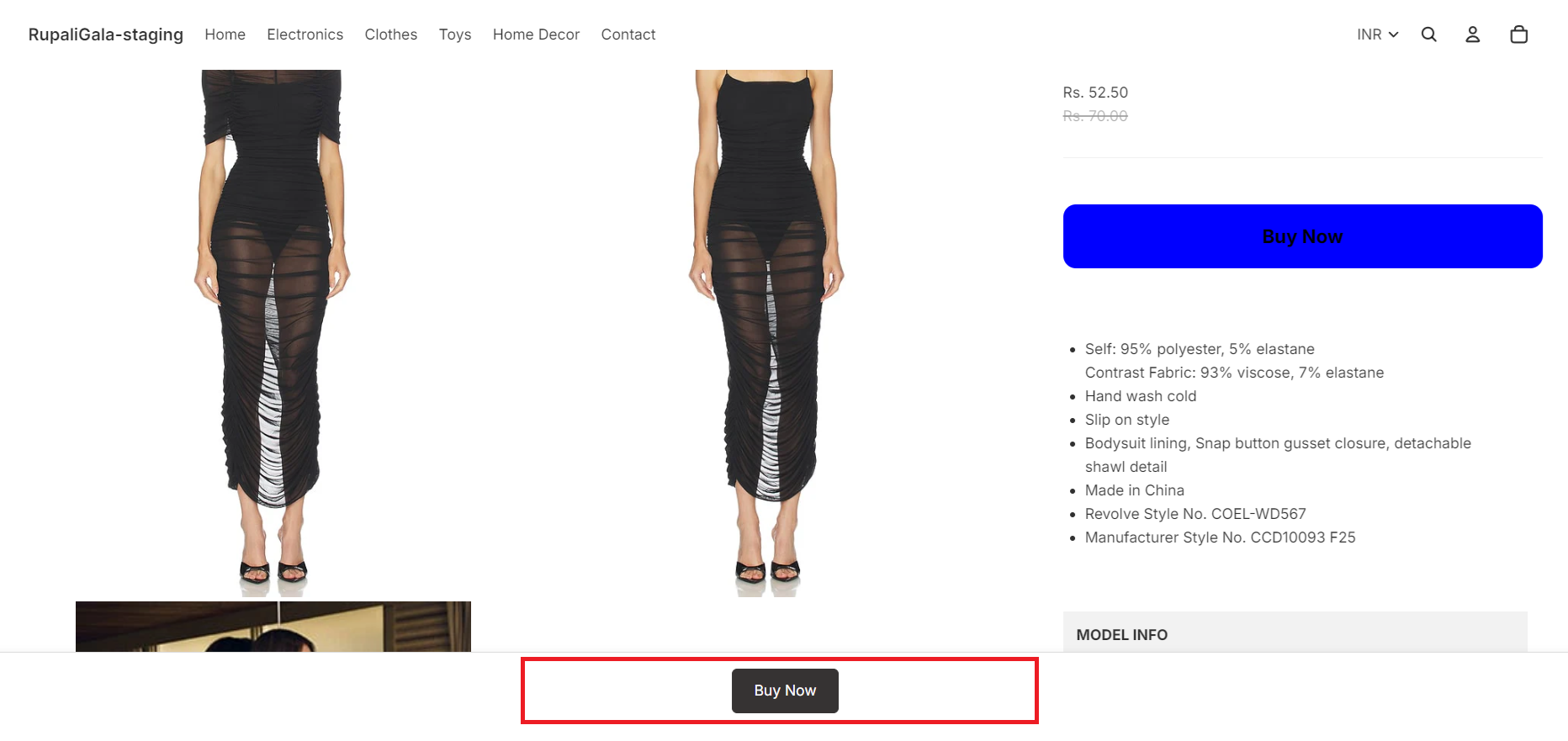
Note: The Sticky Button feature is available for Pro plan and above users only.
⭐ Need help?
If you have problems with adding the button or want to change the way the button looks, or for any other request, please raise a support ticket here. We will take care of it.