
The Variant Table feature lets you display all product variants (with affiliate/external links) in a comparison table on your product page — increasing clarity and boosting affiliate conversions.
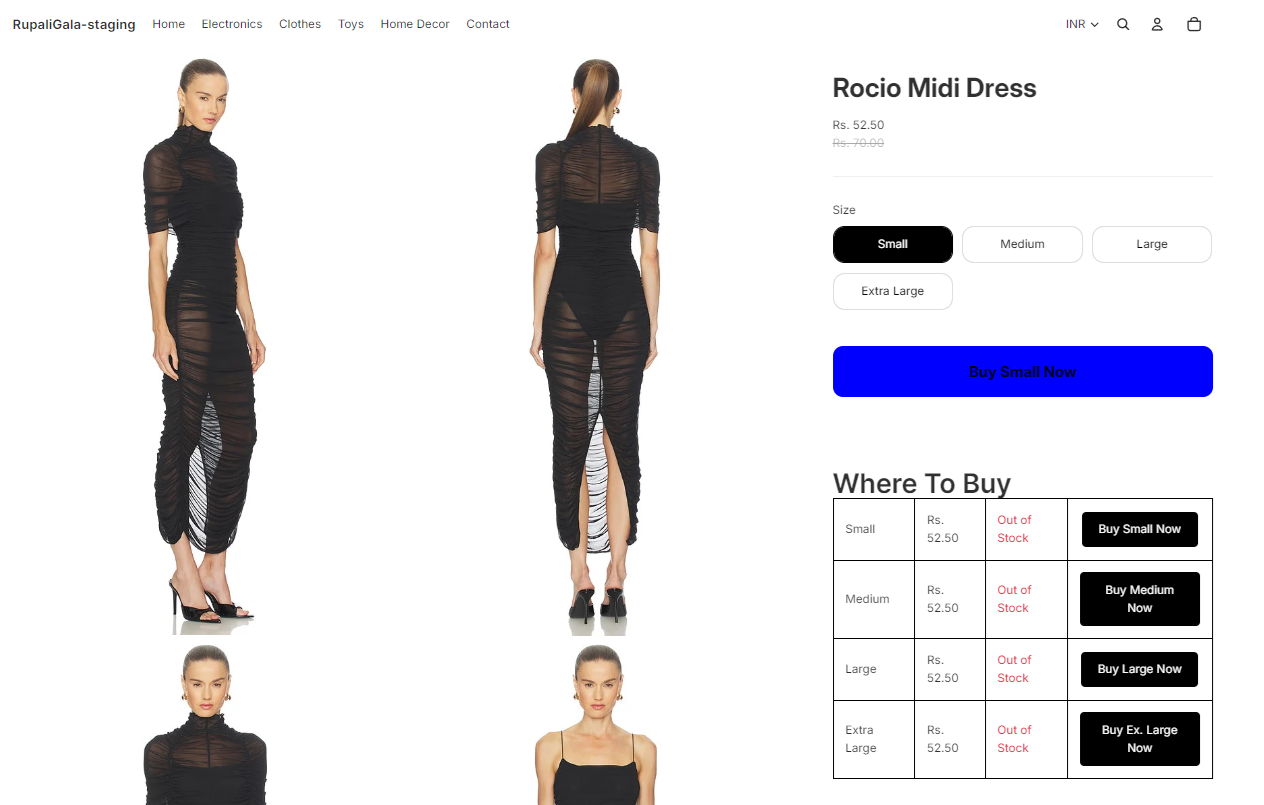
Steps to add Variant Tables
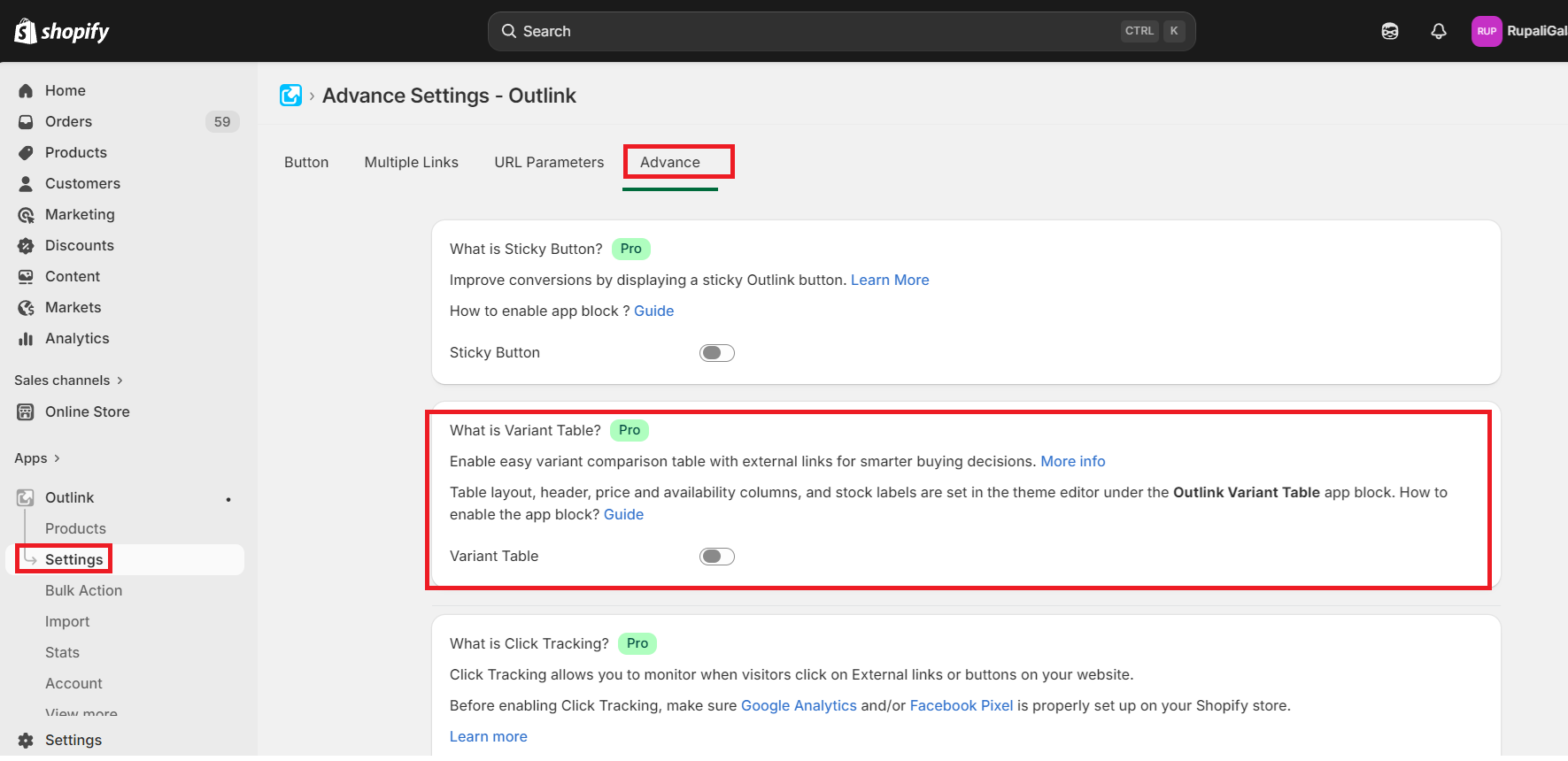
Step 1. Enable Variant table from Outlink App Dashboard
Go to Outlink dashboard > Settings > Advance > Variant Table > Activate and Save.
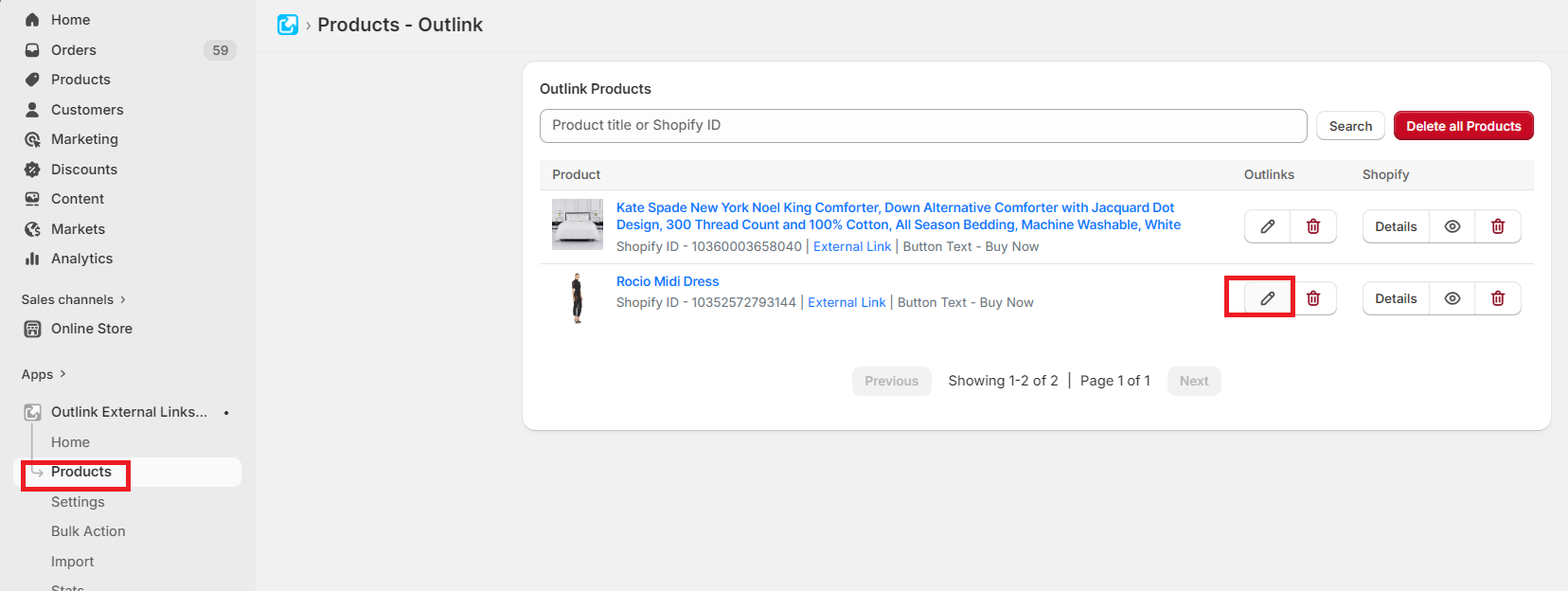
Step 2. Add External Links for Each Variant and Activate the Variant Table
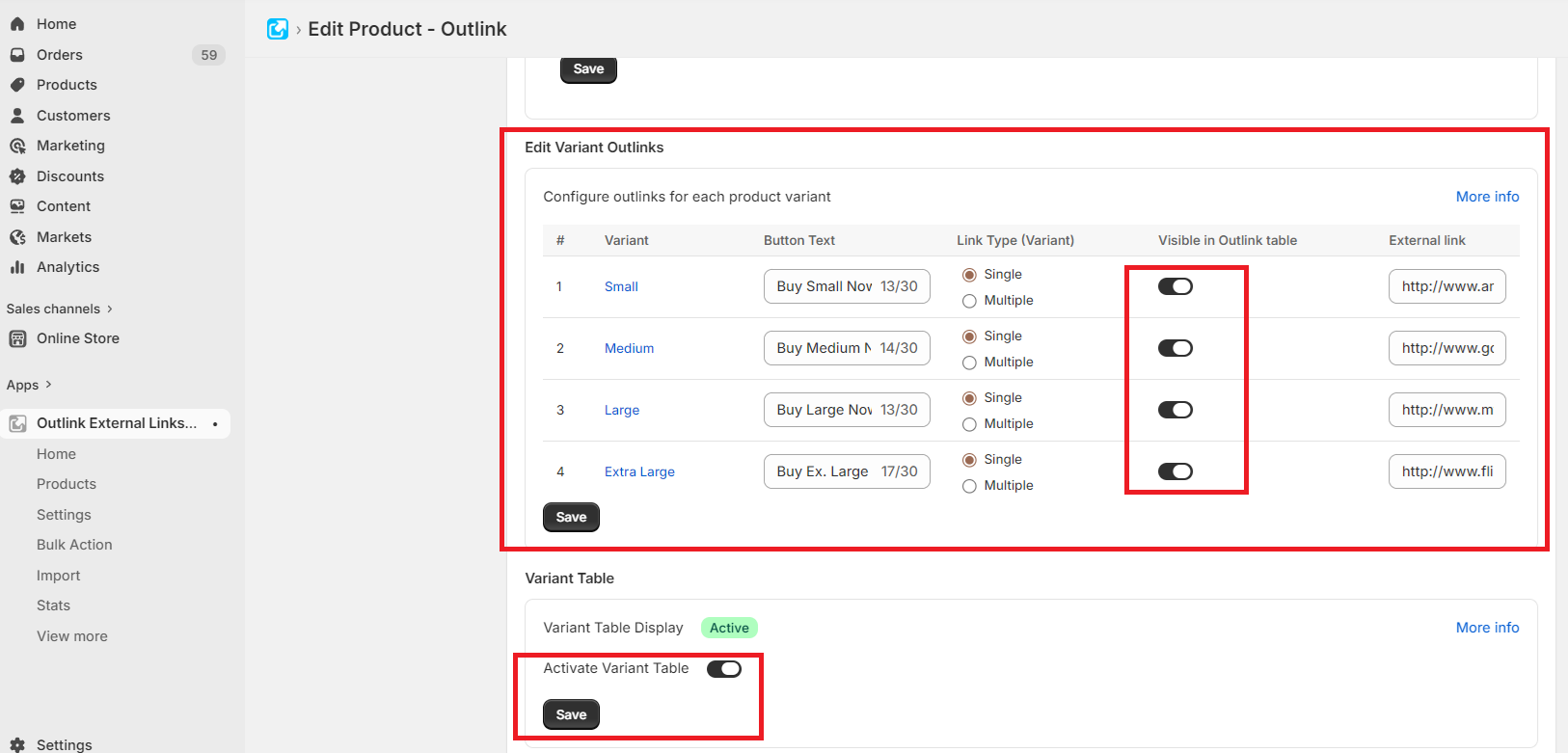
- Go to the Outlink Edit page for the product you wish to enable the table for. Add the external links for each variant and activate the Variant Table option.
- Look for the “Variant Table” option and Turn ON the toggle
Step 3. Enable the Outlink Variant Table App block.
You may refer to the guide here to enable the app block for the variant table.
⭐ Need help?
If you have problems with adding the table or want to change the way the table looks, or for any other request, please raise a support ticket here. We will take care of it.