
This guide explains how to configure certain product variants to use Shopify’s native Add to Cart button while other variants display an External Link / Outlink button.
This feature is useful when:
Some variants are fulfilled directly through your Shopify store
Other variants redirect customers to external marketplaces such as Amazon, Walmart, Target, etc.
How the Feature Works ?
The Outlink app checks the currently selected variant and decides which button to display based on the settings configured for that variant.
Step 1: Enable Outlink for the Product
You must first enable Outlink for the product/variants by following the setup guide here.
Step 2: Configure Variant-Specific Behaviour
For every variant, you can:
- Enable or disable Shopify Add to Cart
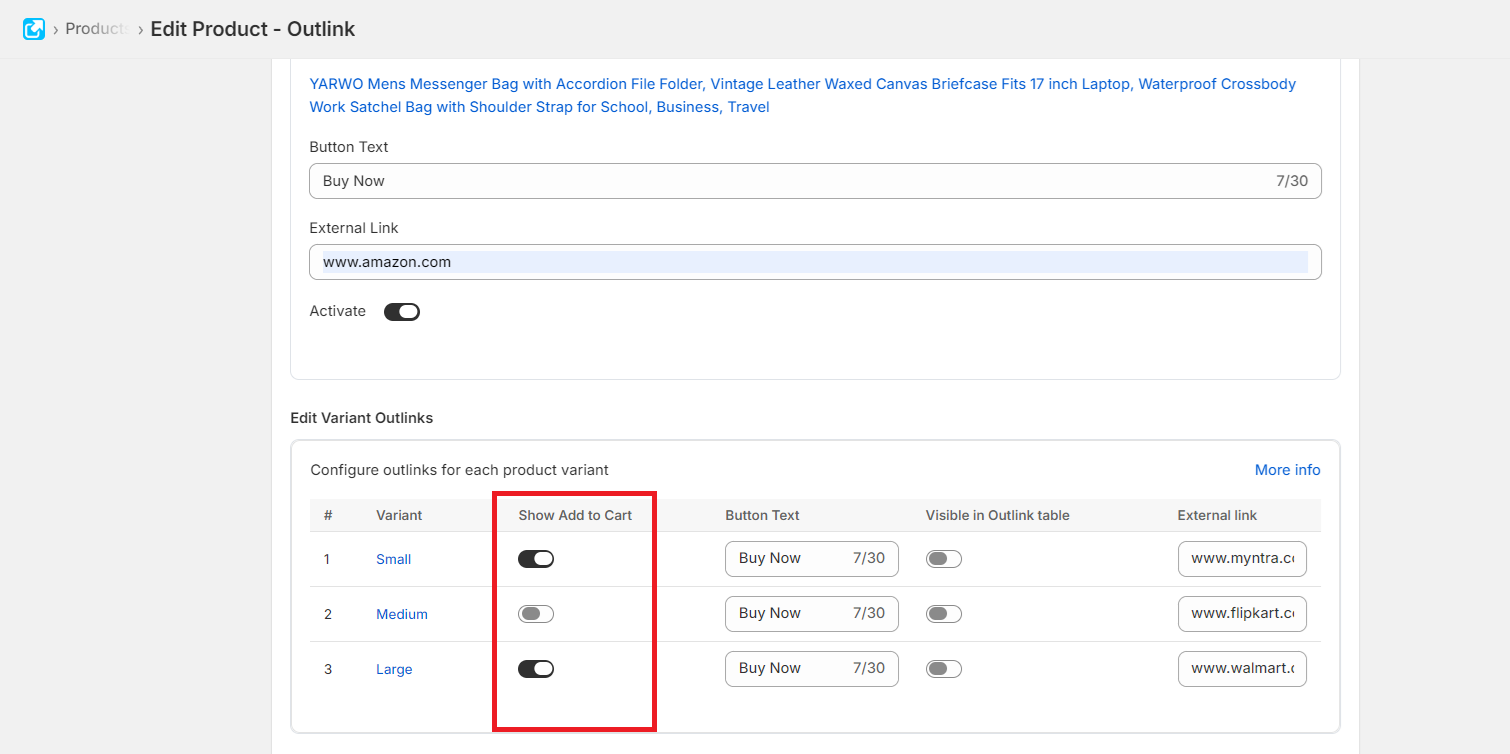
Important Notes on Variant Configuration Logic
1. If “Show Add to Cart” is Disabled for variants
The External Link button will appear for that variant and Customers will be redirected to the configured external URL.
2. If “Show Add to Cart” is Enabled
Shopify’s native Add to Cart button will appear for that variant. Customers can complete checkout directly through your Shopify store.
3. If the Variant is Out of Stock and
- “Show Add to Cart” is enabled
- but the selected variant is out of stock
the app will automatically switch back to displaying the External Link button.
4. The Outlink Button block includes a setting called: “Hide Add to Cart / Shopify Payment Button”
When This Setting is Enabled
For variants using an external link:
- Shopify Add to Cart button is hidden
- Only the Outlink button is displayed
Exception for Add to Cart Variants
If a variant is configured to use Shopify Add to Cart: The Shopify Add to Cart button will automatically become visible again for that specific variant
Note : The same logic mentioned above will be applied for Variant Table and Sticky Button as well.